
TECHNOLOGY IN EDUCATION
EDU 240 A
SPRING 2013
Designed as an introductory computer applications course for education majors, this class provides experience in technology programs for K-12 classrooms. The course includes hands-on experience with telecommunications, multimedia, hypermedia, and K-12 software programs. Candidates also prepare a website for portfolio preparation. (3 s.h.)
Instructor: Dr. Arlys E. Peterson Location: Glidden 115, Computer Lab
.
Meeting Times: 8:30-9:45 a.m.
Days:
|
Feb.5 & 7 Survey Set up Wiki QR Code Microsoft Office Digital Nation 1-2 |
Feb. 12 & 14 Chat Room Drop Box Web Page Web Tools A - G Digital Nation3-4 |
Feb.
19 & 21 Chat Room Bookmarking Sites Adam Bellows Web Tools H-M Digital Nation 5-6 |
Feb. 26
& 28 Chat Room Digital Story Telling iPads Web Tools N-R Digital Nation 7-9 |
March 5 & 7 SmartBoard Web Tools S-Z Jr. Art. #1 |
March 12 & 14 SPRING BREAK |
March
19 & 21 Chat Room Wordle Tagul Work on Presentations |
|
|
March 26 & 28 Chat Room - Webinar Voki FlipSnack Linoit Photovisi Work on Presentations |
April 2 & 4 Chat Room Google Reader Scavenger Hunts Internet Videos Glogster Work on Presentations |
April 9
& 11 Chat Room Online Spreadsheets Google Tools Work on Presentations |
April 16 & 18 Online Tools for Teachers |
April
23 & 25 Student Presentations |
April 30 and May 2 Student Presentations |
May 7 & 9 Student Pesentations |
FINAL May 16 Tech Final 8:00 |
|
As part of the requirements for the national and
state accreditation systems, the FSOE has adopted dispositional and
writing rubrics that evaluate “studenting” and
writing skills. Studenting skills include attendance,
attitude/advocacy, collaboration, content, fairness, feedback,
relationships, and reliability. Writing skills and
the ability to get along with others are essential to the development of
a professional educator. Students will be evaluated twice
during the semester based on the rubrics included within the FSOE
website and education syllabi. If a student receives
a score of one on any rubric element at midterm, the student will meet
with his/her instructor and advisor to develop an improvement plan.
If a score of one is received at the end of the semester on any
rubric element, the student will meet with the area chair to discuss
additional support options. |
DASHBOARD RUBRICS |
Attendance Policy:
Attending class is very important!
After three absences,you will
be asked to drop the class (depending on circumstances).
Being late more than five minutes to class will count as an absence.
If they are 1-5 days late, only half of the points will
be given.
After 5 days, no points will be given.
Assignments on the LMS
Sample Student Teacher Portfolio
TECHNOLOGY AND SUBJECT STANDARDS
ISTE TECHNOLOGY STANDARDS
International Society for Technology in Education
|
|
|
(4) Promote and model digital citizenship and responsibility, and Under the category "facilitate and inspire student learning
and creativity," for example, there are four performance
indicators: (1) Promote, support, and model creative and
innovative thinking, |
|
NCLB SD Technology Standards for Students
Strand 1: Nature and Concepts |
|
| ISTE June, 2009 Technology Standards for Teachers | |
| Technology Standards | |
| Technology Assessment Sites |

SIMPLEKK12 WEBINAR SIGNUP:
To enroll free to the premier site, go to
USF's enrollment page at
http://community.simplek12.com/scripts/student/register.asp?p=9b2acd60-4fdc-4864-bace-e89e1207fcd6
|
Answer Garden Neat Chat 1 Neat Chat 2 |
Medieval Help Desk |
Wikipedia in 2012 - 20 million pages,
282 languages,
8 months of |
"Currency of the Future" "Did You Know 4.0" "Did You Know VI" |
Take February online Survey Technology Inventory Assessment |
|
A Learning Society - video
How to Focus in the Age of Distraction
10 Bold Ideas for Change
- |
CLASS WIKI List of Wiki Pages |
ALL
ASSIGNMENTS UNLESS OTHERWISE TOLD WILL BE COMPLETED ON THE SD STATE STANDARDS |
|
Blogger Edublogs Class example |
View video - **READING, WRITING, TWITTERING**
Handout - Twitter for Educators: A Beginner's Guide
#TCEA2013 = Feb. 4-8
#TCEA
#OETC13 = Feb. 11-13
|
Assignment: Follow an education hashtag - #EdTech or #Edchat each week and a conference hashtag during February. You will discuss what you learned from the tweets in your chat rooms each week.
|
WIKI
|
Wiki Video Tours Wikis in Education |
Wonderful World of Wiki Teaching video |
Set up a Wiki for your Class Assignments Wikispaces.com Class Wiki |
AUGMENTED REALITY/NEW TECH/QR Codes
|
Letters Alive Lego Business Card A R Pinterest Demo Product |
Translator Augmented Reality Phone Apps |
WolframAlpha - Awesome SiteType in: airplanes overheadType in: miles to Korea |
Mike Matas:
A Next-Generation Digital Book
|
How Far Have We Come?
21st Century Fluency Project
|
How Far Have We
Come? The world’s "first digital computer called the “Eniac” was built in Philadelphia in 1946. It took up two floors of an entire building, and one of those was just for the cooling system. A programming cycle took a team of 10 technicians 2 weeks of flicking switches. In those days, people were amazed at what this thing could do—14 ten-digit calculations per second! And today? We can place 10 million times that computational power onto a microchip that is so small, you could accidentally inhale it without even realizing you’d done it. Nanotechnology is currently being used to create nano-machines and nano-subs. These are microscopic computers, machines, and robots about the size of a virus which can be swallowed or injected. If you have a clot or arterial clogging, they can provide microscopic technology to remove the blockages bloodlessly. This will mean non-invasive surgeries of neurological systems. It will mean re-programmed viruses and bacteria designed to deliver molecular doses of chemotherapy to target special cells allowing us to move from emergency interventions to deliberate and personal intervention. |
The 33 Digital Skills That Every 21st Century Teacher Should Have
MICROSOFT OFFICE 2010
Microsoft Office Templates 2010
|
Microsoft 2010
Word
|
Create a 1-page newsletter on a topic assigned in your area of teaching. Newsletter Standard Topics Add columns, pictures, colored text See checklist for requirements. Due Feb. 14 Post on Wiki Microsoft Office Page |
Home:
Styles Insert: Smart Art, Word Art, Equation, Symbol Page Layout: Watermark Review: Comment |
|
|
Microsoft
2010 PowerPoint **Make your presentation exciting Tutorial Pinterest - PowerPoint in the Classroom *PowerPoint Sites and Tips *Vermillion PowerPoint Page *Mouse Mischief *Article/Video |
-Create a PowerPoint
Photo Album with at least 10 pictures (digital or Internet
pics)
Due Feb. 14
Post on Wiki Microsoft Office Page Create a 15-slide PowerPoint or PREZI for students on a standard topic in your area of study
See checklist for requirements. Due Feb. 21 Post on Wiki Microsoft Office Page
|
Insert: Photo Album, Movie Design: Themes, Background Styles Animation: Custom animation, Transitions, Advanced Slide Slideshow: Setup Slide Show View: Presentation Views |
|
|
Microsoft 2010 Publisher Tutorial |
-Create a 3 - panel brochure
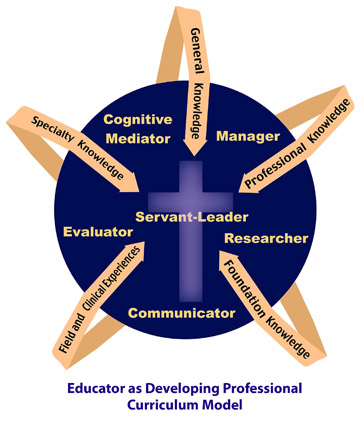
- Welcome to My World - It can be a brochure to introduce yourself to your students Put the USF Curriclum Model on the first panel See checklist for requirements. Due Feb. 21 Post on Wiki Microsoft Office Page |
Page
Options Color Schemes Font Schemes Newsletter Options |
 |
ASSIGNMENT:
Digital
Nation Videos
1. Distracted by Everything
2.What's It Doing to Their Brains?
3.South Korea's Gaming Craze
4.Teaching With Technology
5.The Dumbest Generation?
6.Relationships
7. Virtual Worlds
8. Virtual Experiences Change Us?
9. Where Are We Headed?
Digital Nation
Chapter 1
Chapter 2
View the two short videos and write a summary for each.
You will be discussing the videos in your
assigned chat room next week - 2/12.
Post your notes on your Wiki on a page called Digital Nation.
Assignments: Digital Nation 3 & 4 - write reports and post on Wiki; Web Tools A to Z (A to G) fill out worksheet #1-10
|
Chat Room: Digital Nation Chapters 1-2 videos Twitter Reports Neat Chat A Neat Chat B Neat Chat C |
SEARCH ENGINES Twurdy - readability search SearchCube Microsoft Bing What Do You Love? from Google Word Sift Redz Spacetime 3D KidRex Kidgose SoopleOolone |
Wonderopolis 100 Best Video Sites for Educators
|
CLOUD STORAGE
Share, sync, and save/back-up documents 2 GB of free memory Tutorial - view
Create a DropBox Account
SkyDrive - 25 GB
Google Drive info
SugarSync 5 GB
Create a Drop Box or Sky Drive for future assignments |
|
Codes Codes 2 QR Code Generator Kaywa QR Code Generator Qurify Qrafter Reader QR Reader Colored QR Codes |
QRCodes in the Classroom - article **Pinterest - QR Codes in the Classroom QR Codes for Educational Posters QR Code Blog 10 Ways to Use QR Codes in a HIstory Class QR Codes in Math QR CODE Periodic Table QR Code Ideas QRCode Livebinder of Ideas QR Code Ideas |
Use Kaywa and create a QR Code about Yourself and put it on the first page of your Wiki. |
QRVoiceQRVoice exampleAudio QR Codes
Create a QR Voice and |
Create a QR CODE Scavenger Hunt Generator Ex. - Caps For Sale |
WEB PAGES
Online Student Teacher Portfolio - DUE: May 9
|
*Google Sites Sample |
Google Sites Tutorial | Tour |
Creating Sites With Google Sites |
| Google Sites - Quick Facts | Videos | Google Sites Help Center | How to Embed Documents |
| Michelle Hanson's Sample | Web Page Requirements | Google Documents - upload your documents |
Create a Student Teacher Online Portfolio |
WEB A to Z
| Web Tools A to Z View sites A - G |
|
|
SSIGNMENT:
|
Digital Nation Chapter 3 Chapter 4 View the two short videos and write a summary for each. Post your report on your Wiki on the page called Digital Nation. You will be discussing the videos in your assigned chat room next week. |
Digital
Nation Videos 1. Distracted by Everything 2.What's It Doing to Their Brains? 3.South Korea's Gaming Craze 4.Teaching With Technology 5.The Dumbest Generation? 6.Relationships 7. Virtual Worlds 8. Virtual Experiences Change Us? 9. Where Are We Headed? |
CHAT ROOM - next week 2/19 Videos 3-4 . |
Assignments for this week: Digital Nation Chapters 5&6; Twitter Report; Create a Pinterest with 7 Boards and 15-20 Pins for each Board; A to Z (H-M) 10 sites
21ST CENTURY SKILLS
| CHAT ROOM Digital Nation Twitter Reports LMS Chat Rooms |
21st Century Skills - ISTE Framework 21st Century Skills - video |
21st Century States South Dakota Iowa |
21st
Century Skills Resources ICT Maps Route 21 |
Who
are these students we are teaching?
Learning
with Media
|
Boomers |
Gen
X |
Gen
Y/ Tweens |
|
Listening
to music – Johnny Horten Legend “Battle of New
Orleans” |
Watching
a video Generation X encompasses the 44 to 50 million Americans born between 1965 and 1980. This generation marks the period of birth decline after the baby boom and is significantly smaller than previous and succeeding generations. |
1981 –
Mellennials Student creating “Newtons Laws of Motion”
YouTube |
WEB 2.0 TOOLS
Teaching with Technology vs Learning With Technology
|
Evolution of Web 1.0, Web 2.0 to Web 3.0 |
|
Internet4Classrooms Web 2.0 | Web 2.0 Tools |
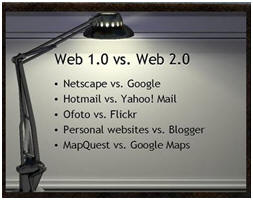
| Web 1.0 is a retronym (a word introduced because an existing term has become inadequate) which refers to the state of the World Wide Web, and any website design style used before the advent of the Web 2.0 ... Wikipedia | Web 2.0 = Web 2.0 websites allow users to do more than just retrieve information. They can build on the interactive facilities of "Web 1.0" to provide "Network as platform" computing, allowing users to run software-applications entirely through a browser. - Wikipedia | Web 3.0
= The next generation of the Web -- Web 3.0
-- makes tasks like your search for movies and food faster and easier.
Instead of multiple searches, you can type a complex sentence or two in your
Web 3.0 browser, and the Web will do the rest. In our example, you could type "I
want to see a funny movie and then eat at a good Mexican restaurant. What are my
options?" The Web 3.0 browser will analyze your response, search the Internet
for all possible answers, and then organize the results for you. |
That's not all. Many of these experts believe that the Web 3.0 browser
can act
like a personal assistant. As you search the Web, the browser learns what you
are interested in. The more you use the Web, the more your browser learns about
you and the less specific you'll need to be with your questions. You can ask your browser open questions like "where should I go for
lunch?" Your browser would consult its records of what you like and dislike,
take into account your current location and then suggest a list of restaurants.
- How Stuff Works |
Web 3.0 - take offOrdering Pizza in the FutureExample: Pandora - type in your favorite music or singer |
| 60 Tools in 60 Minutes | 60 Tools in 60 Minutes Cheat Sheet |
Speaker -
Brandon Lutz 60 Tools Web Page |
This presentation is created by Brandon Lutz. 60 in 60
is a fast paced presentation that goes over 60 technology tools in 60
minutes.. |
|
Create a Pinterest Site and add 7 Boards: Education Videos Teacher Ideas iPad Ideas Math Science Language Art Social Studies Art Majors - choose 7 History Major - choose 7 Math Majors - choose 7 Find 15-20 Ideas for each board. Link your Pinterst Account to your Wiki. |
 Replace multiple urls with just a single url using fur.ly
Create a 10-site Fur.ly in the area you teach. Link the site on your Wiki |
 Symbaloo Web 2.0 Tools Symbaloo -Mobile Teaching Symbaloo Web Mix |
 What it is: Live Binders is a website that allows you to view links like pages in a book instead of URLs on a page. LiveBinders *Index *LiveBinders Tips and Tricks *Digital Textbooks *History *Civil War *Readers/Writers Workshop *Fabulous Fun and Free *Web 2.0 and Digital Photos *Successful Solutions for Technology Integration Pinterest - Livebinders LiveBinders Sites |
|
Portaportal
is a web based bookmarking utility that lets you store links to your
favorite websites online techined Sprinkle Portaportal Stultz Portaportal |
Draggo Peterson |
SCOOPITPreview the following ScoopIt Sites:Integrating TechnologyEducational TechnologyEducational Technology TodayDigital Presentations in EducationEducation and Technology Hand in HandCool Tools for MultimediaiGeneration - 21st Century Education |
ASSIGNMENT:
WEB A to Z
| Web Tools A to Z View sites H - M |
Digital Nation
Chapter 5
Chapter 6
View the two short videos
and write a summary for each.
Post your report on your Wiki on the page called Digital Nation.
You will be discussing the videos in your
assigned chat room next week.
Digital
Nation Videos
1. Distracted by Everything
2.What's It Doing to Their Brains?
3.South Korea's Gaming Craze
4.Teaching With Technology
5.The Dumbest Generation?
6.Relationships
7. Virtual Worlds
8. Virtual Experiences Change Us?
9. Where Are We Headed?
CHAT ROOM - next week 2/26
Videos 5-6
.
| Chat on the
LMS over: -Digital Nation Chapters 5-6 -Two programs from video - "60 Tools in 60 Minutes" Neat Chat 1 Neat Chat 2 Neat Chat 3 |
Decade in 7 Minutes |
ART OF TEACHING preview slide show |
Adam Bellow's Educational Tech Commandments video |
BACK CHANNELING Back Channel Tools TitanPad Room 1 Room 2 |
Sample of a back channelRoom 1Room 2 |
iPAD
20 Free iPad Apps Educators Can't Live Without
iLearn: Creativity Meets the iPad2
ISTE Conference Speaker
|
iPad Video Tony Vincent iPad as Presentation Tool |
iPad APP Statistics 500,000 APPS APP Sites Kathy Schrock iPad Sites Bloomin' iPad |
Google Swiftly - Swiffy converts Flash SWF files to HTML5, allowing you to reuse Flash content on devices without a Flash player (such as iPhones and iPads). | iPod Touch Learning in Hand Twelve Interesting Ways to use an iPod Touch in the Classroom |
iPod, iPad, iPhone Issues for Schools |
iPad Christmas Music iPhone Band |
Teach With Your iPad | .The 10 Types of Educational Apps and When to Use Them | WalkThrough App | |
View some of
|
Cloud Browser - Web Browzer for Flash and Java | Storytelling with iPads | K-5 APPS for Bloom's Taxonomy | |
| 102 Interesting Ways to Use an iPad in the Classroom | **How to view FLASH** | Splashtop App |
Digital Storytelling
|
Digital Story Telling Digital Story Telling Student Videos |
|
1.
PowerPoint > Photo Story 3 Rubric 2. .Creating a Photo Story 3 document using a PowerPoint Post both on your Wiki Must be saved as a .wmv not a wp3. |
You will put your Photo Story 3 video on your
Wiki on the Photo Story 3 page. You will use Insert Images and
Files (green, red, blue icon at the top) on your Wiki on the
Photo Story 3 page and upload it. After it is uploaded, double click on
the icon and it will be placed in your Wiki. On your Wiki page be sure
to do a few Enters on your keyboard before you insert your Photo Story 3
video. |
Make a Video Book Talk with PhotoStory 3
|
PHOTO STORY 3
| Photo Story 3 | Photo Story 3 Tutorial | Create a 10-slide show
on your family or a topic you will teach Due March 19 |
WEB A to Z
| Web Tools A to Z View sites N-R |
|
Digital Nation Chapter 7 Chapter 8 Cahpter 9 View the three short videos and write a summary for each. Post your report on your Wiki on the page called Digital Nation. You will be discussing the videos in your assigned chat room next week. |
Digital
Nation Videos 1. Distracted by Everything 2.What's It Doing to Their Brains? 3.South Korea's Gaming Craze 4.Teaching With Technology 5.The Dumbest Generation? 6.Relationships 7. Virtual Worlds 8. Virtual Experiences Change Us? 9. Where Are We Headed? |
CHAT ROOM - next week 3/5 Videos Chapters 7-8-9 . |
|
Chat Room - Discuss Chapters 7-8-9 and Tweets |
A Vision of Students
Today Learning to Change / Changing to Learn ************************* Lost Generation A Cool video! A palindrome reads the same backwards as forward. This video reads the exact opposite backwards as forward. Not only does it read the opposite, the meaning is the exact opposite. |
Tech-a-roni Tool Box Khan Academy - Art History Empower Your Students to Connect, Create and Collaborate TOOLS TO CREATE TOOLS TO CONNECT TOOLS TO COLLABORATE Paperslide Video Edmodo Safeshare.TV View Pure |
METC Information Literacy: Finding What You Need, Needing What You Find |
SMARTBOARD
All Interactive Whiteboard Resources
|
SmartBoard Activity Maker v. 11
SmartBoard Activity MakerPDF Overview
|
SmartBoard
Templates Smart Exchange 50,000 lessons |
SMART Notebook Express SMART Notebook Express is a web application that enables educators everywhere to open, interact with and share SMART Notebook collaborative learning |
|
Teachers Love SmartBoards Peterson SmartBoard Sites SmartBoard Lesson Ideas SmartLinks EdCompass |
Smart Table - new
|
|
|
NEW SMARTBOARD 800 SERIES New SmartBoard 800 |
Scholastic SmartBoard Sites SmartBoard Sites -Bristol School |
| Create one
6-slide SmartBoard Activity on a Standards topic Anagram - 4 items Category Sort - 6 Image Match - 4 Keyword Match - 4 Multiple Choice - 3 Sentence Arrange - 8 |
Download
Activity Templates N:drive > Education>Edu240arlys> SmartBoard Assignment 2012.notebook Checklist |
Find 7
SmartBoard lessons in the area of your major at
Smart Exchange
and put them in your DropBox Public Folder. Create a page called SmartBoard on your Wiki and copy and paste the URL address for your DropBox Public Folder on it. My Public Folder URL: https://www.dropbox.com/sh/06uan9z66cjuy5s/3kP_6jlnb9 |
Group 1:
Group 2:
Group 3:
Group 4:
Group 5:
STATION 1 – SMARTBOARD HANDS-ON ACTIVITIES
STATION 2 – A. COMPLETE 6 SMARTBOARD SLIDES ON
EDUCATION TOPICS IN YOUR AREA OF TEACHING
WEB A to Z
| Web Tools A to Z View sites S - Z |
ASSIGNMENT: Journal Article #1 - Technology - Journal Wiki. Write a one-page double-spaced report on the article, typed in Microsoft Word and attach it to your Wiki. Be sure to include the title of the article and reference typed in APA style at the top of your critique.
Create a Wiki page called Journal Critiques and attach your Word document and call it #1. Also be ready to discuss your journal article in the chat room 3/19. Rubric
WEEK 6 - March 12 & 14 - SPRING BREAK
|
Chat Room: Journal Article #1 Technology LMS Chat Room |
MID-TERM SURVEY |
|
|
Bloomim' Google
Bloom's Taxonomy |
GOOGLE A to Z Google Books Google Tools - videos *100 Google Tricks for Teachers *100+ Google Tricks |
Khan Academy - CBS |
ShowMe -
good! Lit Charts Study Ladder Useful Charts Awesome Highlighter |
Microsoft Teaching Guide Microsoft Templates Microsoft Free Software |
|
Today's Front Pages Newsy*** Small Town Newspapers Newspaper Map- a site where you can find translated newspapers in the worldNews Map |
Qwiki Earth Album All My Favs |
Using Skype in a Classroom 50 Awesome Ways to Use Skype in a Classroom Skype in the Classroom |
WORD CLOUDS
108 Ways to Use Word Clouds in the Classroom
|
Wordle.com creates a "word cloud" Poetry Wordle Example PPT "Wonders of Wordle" Wordle Tutorial **Wordle Ideas **Top 20 Uses for Wordle Wordle Ideas in Education 45 Ways to Use Wordle in a classroom Wordle Tutorial Wordle PDF Tutorial |
Create a Wordle on
an Education Topic a. Click on Create. b. In the top textbox, type or copy and paste your words. Note: The more a word is repeated in this textbox, the larger it will be in the word cloud. For instance, I would type Smith 3 times so that it stands out from the other names. c. Click Go. d. Click Randomize to create different layout. e. You can also customize the look of your word cloud using the toolbar at the top of your screen. f. Print it out in color and hand it in.
**keep words in a phrase use a tilde between words - Happy~Birthday~to~Tom |
Create a word cloud using words about technology. Copy the embed code and put it on your Wiki on a page called Word Clouds. On the Wiki, click on Widget and paste your embed code in the box. Save. *Use a ~ to keep two words together, i.e, Sioux~Falls |
|
Word Cloud Programs: Tagxedo Word It Out |
video |
The Sound Of Learning video |
Assistive Technology - Enabling Dreams Video |
Ellen - Using
Assistive Technology Video |
Make a Difference
- video |
Work on Presentations
Instructions on Class Wiki
1. PowerPoint
2. Step-by-step directions handout for one program
ASSIGNMENT: Webinar #2 - Web 2.0 - . Write a two-paragraph summary of the Webinar on your Wiki. Be sure to include the Name of the Webinar and who presented it. Create a Wiki page called Webinars. Also be ready to discuss your Webinar in the chat room on 3/26
|
Chat Room
- Discuss 3 things that you learned from the Webinar SimpleK12 Webinar and Twitter Report Titan Pad Group A Group B Group C |
Fur.ly |
VOKI Voki What's A Voki Voki Sites Voki Tutorial Voki for Educators Create a Voki to Introduce yourself and embed it on your Home Wiki page. |
|
2012 Digital Learning State Report Cards 10 Elements of High Quality Digital Learning |
PDF FILE CONVERSIONS
|
Tutorial Change your 15-slide PowerPoint into a PD file and use Flipsnack to create it into a book Post your Flip Book on your Wiki |
Find two PDF files on an
education topic and covert them to journal format using Flipsnack N:drive > Education > Edu240 > PDF files Embed your Flip Book on your Wiki Sample Journal PDF Files PDF Files 2 PDFSearch Engine |
Another PDF file converter Youblisher Issuu Click to Watch This Video |
Bullyinging/Etiquette/Safety
|
Stop Cyberbullying Video Cyberbullying - BrainPop Cyberbullying - Pinterest |
Digital Etiquette Net Smart Kids Know the Rules Digital Citizenship - Pinterest |
ONLINE POSTERS AND COLLAGES
|
Tutorial - video
Post “sticky notes” and other media
Make it Public Linoit Class Sample Assignment
Assignmnet: 2 videos, 4 pictures, Title of your page on a Sticky note, 3 more sticky notes with information about your topic, and one white with Internet Link
|
Collage Maker Photovisi My ScrapNook Magnoto Photobox ****************************** Create a Poster from one of the poster makers and print it out in color Magnoto or Photobox or Photovisi |
|
GROUP WORK ON
FINAL PROJECT PRESENTATION 1. PowerPoint 2. Step-by-step directions handout for one program |
ASSIGNMENT: Journal Article #3 - Social Networking - Twitter - Journal Wiki. Write a two-paragraph summary of the article and attach it to your Journal Article Wiki page. Also be ready to discuss your journal article in the chat room next week. Rubric
Work
on Presentations and Class Assignments
1. PowerPoint
2. Step-by-step directions handout for one program
Chat over Journal Article #3 - Social Networking NEAT CHAT Room A Room B |
Google Reader in Plain English Google Reader Create a RSS feed for yourself using Google Reader |
Create a 10-question Scavenger Hunt using at least three - five sites for your state standards topic.
For each site have the students complete
as least two activities - such as watching a movie or answering
questions you have given to them.
|
|
|
Sample of a WebQuest |
10-questions Scavenger Hunt - See checklist for requirements. |
Glogster
Create a Poster on A Field Trip in your area of study
|
JOURNAL SITES
| Digital Directions | T.H.E.Journal | EdCompass | From Now On | Education World | Activate | MiddleWeb |
INTERNET VIDEOS
Video Tools
|
Video Tools Swiff Point Player |
ViewPure
view YouTube videos without ads |
43 Interesting Ways to Use your Pocket Video Camera in the Classroom |
| YouTube's Video Editor | TubeChop |
Video Creation in the Classroom Many Ways to Use Flip Video Cameras in the classroom |
| Preview TeacherTube or YouTube video sites and embed two education videos on your Wiki. |
Preview five education video sites from the list below and write a 3-4 sentence
summary of the videos. Worksheet Watch one video from each site you choose and write the summary. |
EDUCATIONAL VIDEOS
100 Useful YouTube Videos for Teachers
100 Video Sites Every Teacher Should Bookmark
ASSIGNMENT: Journal Article #4 - Tech Devices - Journal Wiki. Write a two-paragraph summary of the article and attach it to your Wiki. Create a Wiki page called Journal Critiques and attach your Word document. Also be ready to discuss your journal article in the chat room next week. Rubric
Work
on Presentations and Class Assignments
1. PowerPoint
2. Step-by-step directions handout for one program
| Chat Room: Tuesday Journal Article #4 Tech Devices |
REVIEW
iPads - Do the Following:
1. Open up Settings and log > Click on Wi-Fi - Not Connected >Click on USF Guest
Scroll to the bottom and click I accept.
You are now logged onto the Internet.
Click the Home Button
2. Take a picture with the iPad.
3. Click on Safari and go to CNN.
4. Click on Talking Gina or Talking Ben or Talking Tom and talk to one of them. They will repeat what you say.
5. Go to iBooks and open a book and read part of it.
6. Open Dragon Dictation and dictate 3 sentences about yourself.
7. Open an APP for Vocabulary, Books, Social Studies, Science, Math, Early Childhood, Drawing/Art, Music
8. Open up Too Noisy and apply it to our classroom.
9. Open up YouTube and find a video.
10. Click on Notebook and Open a Smartboard File.
11. If you have Siri in Settings ask Siri a question.
12. Watch Video on Cameras and Face Time
Creating a Technology Lesson
Put 2 QR Codes on a book - 1) video 2) description of book
FLIPPED CLASSROOM
| Flipped Classroom Sites | Flipped Classrooms - video | Flipping the Classroom - video |
|
|
Khan Academy - You Tube |
Khan
Academy View 1 Math and 1 History Lesson |
View Scavenger Hunts
Student Teacher Portfolio Update
Communicator - Newsletter, Brochure, Presentation handout
Cognitive Mediator:15 slide PowerPoint, Scavenger Hunt,
Researcher: Pinterest link
Evaluator: A to Z Sites
assignment
Manager: just create a page
Servant Leader: just create a page
Virtual Field Trips
ASSIGNMENT: Journal Article #5 - Cell Phones in the Classroom - Journal Wiki. Write a two-paragraph summary of the article and attach it to your Wiki. Create a Wiki page called Journal Critiques and attach your Word document. Also be ready to discuss your journal article in the chat room next week.
Work
on Presentations and Class Assignments
1. PowerPoint
2. Step-by-step directions handout for one program
Simple K12 Webinar - cell phones

